

Markdown Components for Posts

Headings
| Syntax | Output |
|---|---|
# 'heading-name' |
Level 1 |
## 'heading-name' |
Level 2 |
### 'heading-name' |
Level 3 |
#### 'heading-name' |
Level 4 |
##### 'heading-name' |
Level 5 |
###### 'heading-name' |
Level 6 |
a. There are no spaces between the # in syntax
b. There is space between # and heading-name.
c. Note that Level 1 and Level 2 Heading has underline.
d. Each level will show on the right side contents bar.
Emphasis
Bold
| Syntax | Output |
|---|---|
**This is bold** |
This is bold |
__This is bold__ |
This is bold |
- Don’t do the following. Markdown applications don’t agree on how to handle underscores in the middle of a word
| Syntax | Output |
|---|---|
This__is__bold, instead do this This**is**bold |
This__is__bold, instead do this Thisisbold |
Italics
| Syntax | Output |
|---|---|
*This is italics* |
This is italics |
_This is italics_ |
This is italics |
- Do not use underscores in the middle of a sentence or word.
Bold and Italics
| Syntax | Output |
|---|---|
***This text is bold and italics*** |
This text is bold and italics |
___This text is bold and italics___ |
This text is bold and italics |
**_This text is bold and italics_** |
This text is bold and italics |
__*This text is bold and italics*__ |
This text is bold and italics |
This text is***bold and italics*** |
This text isbold and italics |
Underline
| Syntax | Output |
|---|---|
<u>This text is underlined</u> |
This text is underlined |
Strikethrough
| Syntax | Output |
|---|---|
~~This text is strikethrough~~ |
Highlight
| Syntax | Output |
|---|---|
This text is <mark>highlighted</mark> |
This text is highlighted |
Blockquotes
Syntax
Use > before a paragraph for blockquotes
> This is a blockquote
Output:
This is a blockquote
Blockquotes with Multiple Paragraphs
Blockquotes can contain multiple paragraphs. Add a > on the blank lines between the paragraphs.
Syntax
> This is paragraph 1
>
> This is paragraph 2
Output:
This is paragraph 1
This is paragraph 2
Nested Blockquotes
Blockquotes can be nested. Add a >> in front of the paragraph you want to nest.
Syntax
> This is paragraph 1
>
>> This is paragraph 2
>
> This is paragraph 3
Output:
This is paragraph 1
This is paragraph 2
This is paragraph 3
Blockquotes with Other Elements
With bold
> **This is bold in blockquotes**
This is bold in blockquotes
With underline
> <u>This is underlined</u>
This is underlined
and so on.
Subscript
| Syntax | Output |
|---|---|
H<sub>2</sub>O |
H2O |
Superscript
| Syntax | Output |
|---|---|
x<sup>2</sup> |
x2 |
Lists
Ordered Lists
Syntax
- apple
- ball
- cat
- dog
Output:
- apple
- ball
- cat
- dog
- Note that in the syntax the first letter starts with
1, rest of the numbering can be anything. Example below:
- apple
- ball
- cat
- dog
- apple
- ball
- cat
- dog
Indented List
- Use
TABkey on the keyboard twice if you want to keep same numbering. - Use
Spacekey four times or oneTABfor numbering change
Output with two TAB:
- apple
- ball
- cat
1. bat
2. rat - dog
Output with four Space or one TAB:
- apple
- ball
- cat
- bat
- rat
- dog
Unordered List
Use - at the beginning to denote an unordered list
Syntax
- apple
- ball
- cat
- dog
- elephant
Output
- apple
- ball
- cat
- dog
- elephant
Indented List
Similar to ordered list style
Starting Unordered List Items With Numbers
If you need to start an unordered list item with a number followed by a period, you can use a backslash \ to escape the period.
Syntax
- 10 apple
- 20\. ball
- cat
- dog
- elephant
Output
- 10 apple
- 20. ball
- cat
- dog
- elephant
Code Blocks
Backticks
| Syntax | Output |
|---|---|
Use single backtick to denote `code`. |
Use single backtick to denote code. |
Code Block
Use a single TAB or 4 Space for code block
Output
<HTML>
    <Body>
    Test
    </Body>
</HTML>
Fenced Code Blocks
Use triple backticks ``` at the beginnning and the end of the code
Syntax
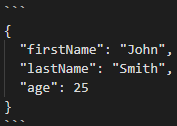
Output
1 | { |
Links
Links with title (hidden links)
| Syntax | Output |
|---|---|
[This is text](https://kkavion.com) |
This is text |
Links without title
| Syntax | Output |
|---|---|
https://kkavion.com |
https://kkavion.com |
info@kkavion.com |
info@kkavion.com |
- Links can also be formatted using Emphasis(shown above)
Images
Use ! exclamation mark followed by alternative text in square brackets [] and then the link to the image file in parenthesis ()
| Syntax | Output |
|---|---|
 |
 |
- Markdown doesn’t support image sizing so to resize the image you will have to use HTML tags
| Syntax | Output |
|---|---|
<img src="/images/ih-logo.webp" height="" width="150" alt="KHW Logo"> |
|
Tables
To add a table, use three or more hyphens (—) to create each column’s header, and use pipes (|) to separate each column.
Syntax
| Syntax | Description |
|---|---|
| Header | Title |
| Paragraph | Text |
Output
| Syntax | Description |
|---|---|
| Header | Title |
| Paragraph | Text |
Alignment
Use the (:) with (—) to specify alignment in the columns
Syntax
| Left Align | Center Align | Right Align |
|:---|:---:|---:|
| Left | Center | Right |
Output
| Left Align | Center Align | Right Align |
|---|---|---|
| Left | Center | Right |